Google Shopping on Shopify: GTIN, brand and product category explained
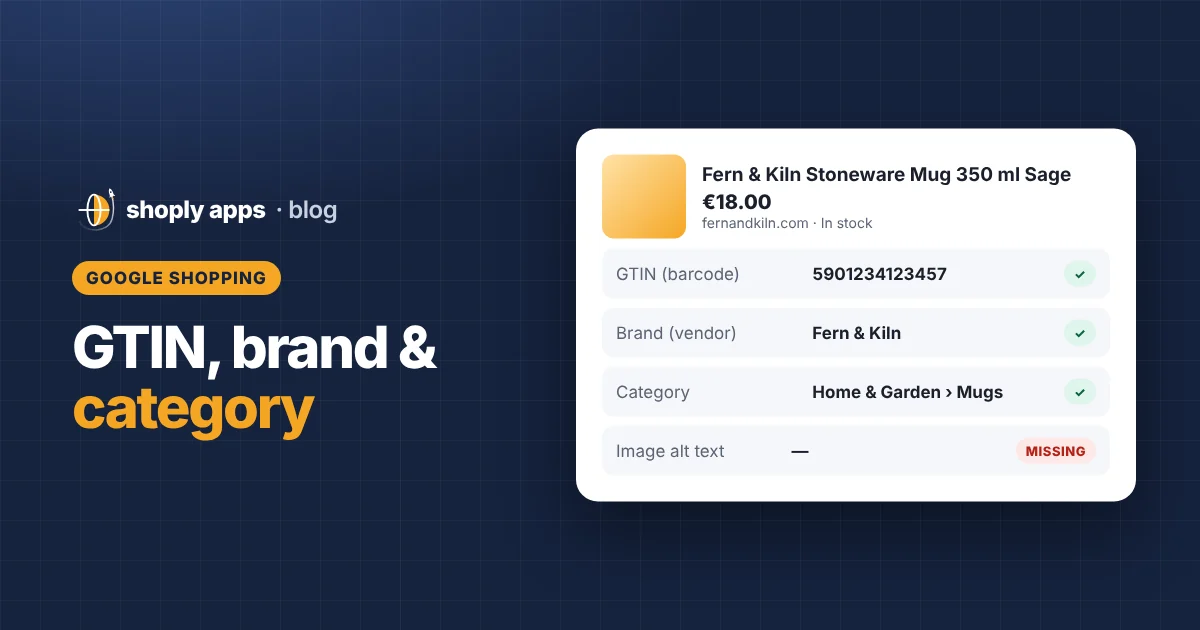
Key takeaways
- Google Shopping listings are built from your Shopify product data, so gaps in Shopify become gaps (or errors) in Google Merchant Center.
- The GTIN (the UPC, EAN or ISBN barcode number) goes in each variant's Barcode field; products with a manufacturer-assigned GTIN should always include it, while handmade or custom products without one should leave it empty rather than invent a number.
- Brand is commonly taken from the product's Vendor field, so the vendor should be the real brand name, not your supplier or warehouse.
- Titles can be up to 150 characters, but Google shows far fewer, so put the brand, product and key attribute first.
- Set a product category from Shopify's standard product taxonomy, use clean images without watermarks, and keep price and availability identical to the product page.
When you connect your store to Google, for example through Shopify's Google & YouTube channel, Google Merchant Center receives a product feed: a structured list of your products and their attributes. That feed is built from the fields you already fill in on each Shopify product. Here is what matters most and where each piece lives.
What product data does Google Merchant Center need from a Shopify store?
At a minimum, Google needs a title, description, link, image, price, availability and, where they exist, product identifiers such as GTIN and brand. Exactly what is required depends on the product, the country and Google's current product data specification, which changes over time, so check Merchant Center diagnostics for anything specific to your account.
Which Shopify field feeds each Google attribute?
Most Google attributes map to a Shopify field you already know. This is the usual mapping with Shopify's own channel; feed apps may differ.
| Google attribute | Shopify field | Tip |
|---|---|---|
| GTIN | Variant Barcode | Fill it for every variant that has a manufacturer barcode. Never invent one. |
| Brand | Vendor (commonly) | Use the real brand name, spelled the same way on every product. |
| Title | Product title (plus variant options) | Most important words first; avoid promotional text and ALL CAPS. |
| Description | Product description | Describe the product itself: materials, size, use. No shipping or sale messages. |
| Product category | Category (standard product taxonomy) | Pick the most specific category that fits. |
| Product type | Product type | Your own label; keep it consistent so you can group products in campaigns. |
| Image link | Product and variant images | Clear product photo, no watermarks or promotional overlays. |
| Price | Variant price | Must match what the product page shows. |
| Availability | Inventory quantity and policy | Must match whether the page lets shoppers buy. |
What is a GTIN and where does it go in Shopify?
A GTIN (Global Trade Item Number) is the number behind a product's barcode, and in Shopify it goes in the Barcode field of each variant. Common forms are the UPC (12 digits, mainly North America), the EAN (13 digits, used in Europe and many other regions) and the ISBN for books.
GTINs help Google identify exactly which product you sell. Under Google's product data specification, products that have a GTIN assigned by the manufacturer should be submitted with it. Missing or incorrect GTINs on branded products can lead to warnings, disapprovals or limited performance.
Practical rules:
- One GTIN per variant. A T-shirt in three sizes usually has three different barcodes. Fill in each variant, not just the first.
- Copy it, don't create it. If you resell a branded product, use the barcode printed on the packaging or supplied by the manufacturer.
- Own brand? If you manufacture products and want official GTINs, they are issued by GS1, the organisation that manages barcode numbers.
What if my products are handmade or custom and have no GTIN?
Leave the Barcode field empty; don't make up a number or use an internal SKU. Google's specification includes a way to say a product has no standard identifiers, known as identifier_exists. Setting it to "no" (or false) tells Google the item is, for example, handmade, custom-made or vintage, and that a missing GTIN is expected rather than an error.
How this is set depends on your channel or feed app, so check its settings and Merchant Center diagnostics. Only use it when the product genuinely has no GTIN.
Where does Google get the brand from?
When you sync through Shopify's Google & YouTube channel, the brand is commonly taken from the product's Vendor field. That makes the Vendor field more important than many merchants realise.
- Use the brand shoppers recognise, not your wholesaler's name.
- Keep spelling consistent. "Acme", "ACME" and "Acme Ltd" look like three brands.
- Don't leave it blank or use placeholders like "Default" or "Unknown".
For products you make yourself, your store's brand name is usually the right brand.
How should I write product titles for Google Shopping?
Put the most important words first: usually brand, product name and the key attribute, followed by size, colour or material. Google's specification allows titles of up to 150 characters, but listings show far fewer, so the start of the title does most of the work.
A simple formula that works for many stores:
Brand + Product + Key attribute + Size / Colour
Adjust the order to how people search in your category:
- Clothing: Brand + Gender + Product + Material + Colour + Size
- Electronics: Brand + Product + Model number + Key spec
- Home and garden: Brand + Product + Material + Dimensions
Before and after:
| Before | After |
|---|---|
| BEST SELLER!! Cosy Jumper | Northwool Women's Merino Wool Jumper, Forest Green, Medium |
| Candle - Free shipping today | Ember & Co Soy Wax Candle, Fig and Cedar, 200 g |
Avoid promotional text, excessive capitals and keyword lists. Avoid duplicate titles across different products, too. Our product page SEO checklist covers titles for your own store pages too.
What is the difference between product category and product type?
Product category is a standardised classification chosen from Shopify's standard product taxonomy; product type is a free-text label you invent yourself. Both are set on the product page in Shopify, and both are useful for different reasons.
- Product category uses a shared, standardised list of categories that runs from broad to specific (for example, from Apparel & Accessories down to a specific clothing type). Because it is standardised, channels like Google can understand it. An accurate, specific category helps Google classify your product correctly and show it for relevant searches.
- Product type is whatever you want it to be, such as "Summer tees" or "Gift sets". It is commonly passed to Google as your own product type, which you can use to group products when setting up campaigns and reports.
What images does Google accept?
Google wants a clear, accurate photo of the product itself, without watermarks, promotional text, added logos or borders. Your main Shopify product image is usually the one Google uses.
- Show the product being sold, well lit, on a simple background, with no "SALE" badges or text overlays.
- Give each colour variant its own image so the listing matches what the shopper picks.
- Add alt text in Shopify. It helps accessibility and your store's own search visibility.
Products with no image generally can't be shown, so fix those first.
Why must price and availability match the product page?
Google checks that the price and stock status in your feed match what shoppers see on your product page, and mismatches can lead to products being disapproved. The aim is simple: a shopper who clicks a listing should find the same price and be able to buy.
Mismatches often come from currency or tax differences between markets, apps that change prices on the page, or stock that ran out between feed updates. See our guide to out of stock and oversold products for more on that.
How do I find products with missing Google data?
Start with Merchant Center diagnostics, which lists issues per product, and then fix them at the source in Shopify. Fixing data in Shopify, rather than in Google, means the fix survives the next sync.
With a large catalog, it helps to check the Shopify side in bulk: products with no barcode, no vendor, no category, titles that are too long or duplicated, and products with no image. That is the part Shoply: Item Scan & Analytics, our Shopify app, is designed to cover. It doesn't send feeds to Google; it scans the Shopify data the feed is built from and flags these gaps. A routine like our monthly catalog health checklist keeps them from creeping back.
FAQ
Where do I put the GTIN in Shopify?
Put it in the Barcode field of each variant. Every size or colour that has its own manufacturer barcode needs its own GTIN, so check each variant, not just the first one.
Can I make up a GTIN or buy a random barcode for my products?
No. A GTIN must be the real number assigned to that exact product. If you resell a branded product, use the manufacturer's barcode. If you make the product yourself and want official GTINs, they come from GS1. Handmade or custom products without a GTIN should leave the field empty.
Does Google use my Shopify product type?
Product type is your own free-text label and is commonly passed to Google as your own product type value, which is useful for organising campaigns. It does not replace the product category, which should be set from Shopify's standard product taxonomy.
Why was my product disapproved in Google Merchant Center?
Common causes include a price or availability that does not match the product page, a missing or invalid GTIN, and images with watermarks or promotional text. Merchant Center diagnostics shows the exact issue for each product, so start there.
Catch missing Google data before Google does
Shoply: Item Scan & Analytics checks every product for missing barcodes, brands and categories, titles too long for Google, missing images and more, then helps you fix them in bulk. It's free on the Shopify App Store.
Install free on Shopify