Shopify catalog health: a monthly checklist to protect your margins
Key takeaways
- Catalog health is how complete, correct and profitable your product data is: real costs and sensible prices, trustworthy stock numbers, and complete product pages.
- Small problems such as selling below cost, stock-outs, thin descriptions and missing Google Shopping fields quietly cost money, and they pile up as you import products, add variants and make edits.
- Check three groups every month: pricing and margin, stock, and descriptions and content.
- Fix the problems with the most money at stake first: for example, 40 units a month sold at €2 below cost is €80 lost every month.
- Make it a habit with a 30-minute monthly review, a short weekly check of below-cost and out-of-stock products, and a change log so you can undo edits.
What is catalog health?
Catalog health is how complete, correct and profitable your product data is. A healthy catalog has a real cost and a sensible price on every variant, stock numbers you can trust, and product pages with the descriptions, images and identifiers that shoppers and search engines need.
It is not one big metric. It is dozens of small details: a missing cost here, an untracked variant there, a product with no image that slipped through an import. Each one looks harmless on its own. Together they decide whether your catalog quietly makes money or quietly leaks it.
Why do small catalog problems quietly cost money?
Small catalog problems cost money because they rarely cause an error you can see. The store keeps working, orders keep coming in, and the loss only shows up later as thinner margins or lower sales than you expected.
The four most common leaks are:
- Selling below cost. A supplier raises prices, but your retail price stays the same. Every sale of that variant now loses money, and nothing in your checkout warns you.
- Missed sales from stock-outs. A best seller runs out and sits at zero for a week or two. You never see the orders you did not get.
- Weak product pages. No description, one blurry image or a vague title make shoppers less likely to buy and give search engines little to work with.
- Poor visibility in Google Shopping. Missing brand, barcode (GTIN) or product category can limit how and where your products appear in shopping results.
Why do catalog problems pile up as your store grows?
Catalog problems pile up because every change to your catalog is a chance to introduce one, and a growing store makes a lot of changes. The more products and variants you have, the less likely anyone is to spot a single bad record by browsing.
Typical sources include:
- Imports. A CSV or supplier feed can bring in hundreds of products at once, often with empty cost fields, missing images or no product type.
- Supplier price changes. Your costs move, but nobody updates the cost per item in Shopify, so your margin reports are wrong too.
- New variants. Adding a new size or colour often means copying a price without checking the cost, or forgetting to turn on inventory tracking.
- Staff edits. A quick sale price, a renamed title or a tweaked stock setting gets made and never reversed.
None of this is anyone doing a bad job. It is simply what happens to product data over time, which is why a regular check works better than a one-off clean-up.
What should a monthly Shopify catalog health checklist include?
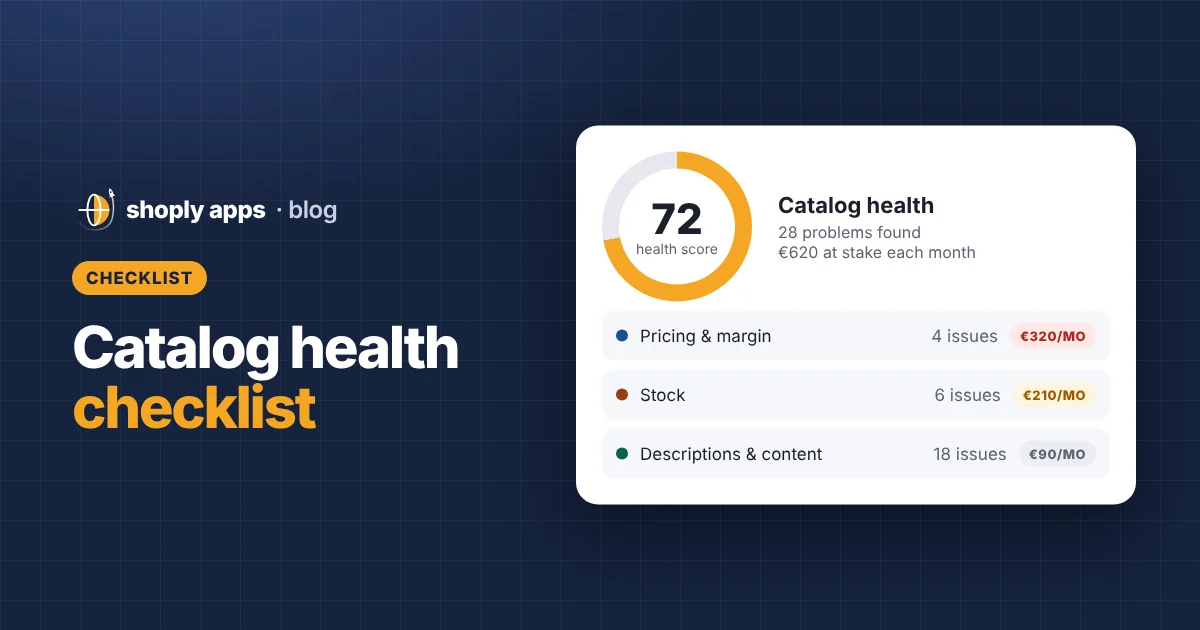
A monthly checklist should cover three groups: pricing and margin, stock, and descriptions and content. Work through each group, note what you find, then decide what to fix first using the money at stake (covered in the next section).
1. Pricing and margin
These checks protect the profit on every order. For a full walkthrough, see how to find Shopify products you're selling below cost.
| Check | Why it matters | How to fix |
|---|---|---|
| Variants priced below or at cost | Every sale loses money or makes nothing | Raise the price, renegotiate the cost, or stop selling the variant |
| Variants with a price of 0 | Usually an import mistake, and the product is given away | Set the correct price, or hide the product until it has one |
| Margin below your target | Thin margins get eaten by shipping, fees and discounts | Reprice towards your target margin, starting with best sellers |
| Missing cost per item | Without a cost, you cannot see margin at all | Fill in the cost per item field on each variant |
| Compare-at price not higher than price | A "sale" that is not really a sale looks broken to shoppers | Clear the compare-at price or set it above the selling price |
| Odd price gaps between variants | Often a typo, such as one size priced at a tenth of the others | Compare variant prices side by side and correct outliers |
Margin % = (price − cost) ÷ price × 100
2. Stock
These checks stop you losing sales to empty shelves and overselling stock you do not have. We go deeper in out of stock and oversold on Shopify.
| Check | Why it matters | How to fix |
|---|---|---|
| Oversold or negative stock | Orders you cannot fulfil lead to refunds and unhappy customers | Recount, reorder, and contact affected customers early |
| Selling when out of stock | Fine for planned pre-orders, risky if switched on by accident | Turn off "continue selling when out of stock" unless you mean it |
| Out of stock or low stock on sellers | Every day at zero is lost margin | Reorder based on recent sales, not gut feel |
| Products likely to sell out soon | You can act before the stock-out, not after | Divide stock on hand by daily sales to estimate days left |
| Inventory not tracked | Shopify cannot stop overselling if it is not counting | Turn on quantity tracking for physical products |
| No sales in 60 days | Dead stock ties up cash and space | Bundle, discount, or clear it out |
| Stock on products not for sale | Inventory sitting on draft or hidden products earns nothing | Publish the product or move the stock |
3. Descriptions and content
These checks make products easier to find and easier to buy. Use our product page SEO checklist for titles, descriptions and alt text, and our guide to GTIN, brand and product category for Google Shopping for the feed fields.
| Check | Why it matters | How to fix |
|---|---|---|
| No description or a very short one | Shoppers have questions, and search engines need text to understand the page | Write a few useful paragraphs: what it is, who it is for, key details |
| No image, or images without alt text | Products without images rarely sell; alt text helps accessibility and image search | Add clear photos and a short, descriptive alt text for each |
| No SEO description, or an SEO title that is too long | Search results may show a cut-off or auto-generated snippet | Write a concise SEO title and description in the product's search listing settings |
| Duplicate or overly long titles | Similar titles confuse shoppers; long ones get cut off in Google | Make each title unique and put the most important words first |
| No product type, brand (vendor) or product category | Weakens collections, filters and shopping feeds | Fill these fields consistently across the catalog |
| No barcode (GTIN) | Google uses GTINs to match products that have one | Add the manufacturer's barcode where the product has one |
How do you decide which catalog problems to fix first?
Fix the problems that cost the most money each month first. A monthly check can surface a long list, and working from the top by money at stake means your first hour of work does the most good.
To estimate the monthly cost, use your own sales data:
Monthly cost of a pricing problem = units sold per month × money lost per unit
Missed margin from a stock-out = units per day × days out of stock × margin per unit
Two worked examples:
- Below cost: a variant sells 40 units a month at €2 below cost. That is 40 × €2 = €80 lost every month, or nearly €1,000 a year if nobody notices.
- Stock-out: a product that sells 3 a day is out of stock for 10 days, with a €12 margin per unit. That is 3 × 10 × €12 = €360 of missed margin, from one product in one month.
Content problems are harder to put a number on, so rank them by traffic and sales instead. A missing description on your best seller matters far more than one on a product nobody visits.
Once each problem has a rough monthly figure, sort the list and work from the top. This is the same approach Shoply: Item Scan & Analytics takes: it ranks every problem it finds by the money at stake each month, so the €360 stock-out appears above a missing alt text.
How do you make catalog health checks a habit?
Make it a habit by keeping it short, regular and reversible: a 30-minute monthly review, a five-minute weekly glance, and a written record of what you changed.
A 30-minute monthly routine
- 10 minutes on pricing and margin. Export your products, or use a report, and sort by margin. Look for anything below cost, at cost, priced at 0 or missing a cost.
- 10 minutes on stock. Check best sellers for low stock, anything oversold, and any variant that is not tracked or is set to keep selling at zero.
- 10 minutes on content. Pick your top sellers and newest imports and check descriptions, images, SEO fields, brand, barcode and category.
A weekly quick check
Once a week, look at two things only: anything selling below cost and anything out of stock or about to be. These are the problems that cost money fastest, so they should not wait a month.
Keep a change log
Write down every bulk change: the date, what you changed, the old value and the new value. A simple spreadsheet is enough. If a price rise hurts sales or an edit goes wrong, you can see exactly what to put back. It also helps when several people edit the catalog.
If you would rather not run these checks by hand, Shoply: Item Scan & Analytics is being built to do this automatically. It scans every product for 27 problems across the same three groups, gives you a catalog health score, can run scans daily or weekly, and keeps a change history so you can undo fixes.
FAQ
How often should I check my Shopify catalog health?
Do a full review once a month and a quick check once a week. The monthly review covers pricing, stock and content; the weekly check looks only at products selling below cost and products out of stock or about to run out, because those cost money fastest.
What is a catalog health score?
A catalog health score is a single number that summarises how many of your products pass a set of checks on pricing, stock and content. It is useful for tracking progress over time, but the list of problems ranked by money at stake tells you what to fix first.
Which catalog problems should I fix first?
Fix the problems that cost the most each month. Estimate units sold per month times money lost per unit for pricing problems, and units per day times days out of stock times margin for stock-outs, then work down the list from the biggest number.
Do I need the cost per item filled in for every product?
Yes, if you want to know your margins. Without a cost on each variant you cannot spot products selling below cost or below your target margin, so missing costs are one of the first things to fix.
Run this checklist automatically
Shoply: Item Scan & Analytics checks every product for 27 problems across pricing, stock and content, then ranks them by the money at stake each month. It is free to install from the Shopify App Store.
Install free on Shopify