How to find Shopify products you're selling below cost (and fix them)
Key takeaways
- A product sells below cost when its price is lower than the cost per item you paid, so every sale loses money before shipping and fees.
- Enter cost per item for every variant; Shopify then shows profit and margin, and a CSV export lets you flag products below cost, at cost, at $0 or missing a cost.
- Margin is (price − cost) ÷ price and markup is (price − cost) ÷ cost, so a 40% markup gives only a 28.6% margin.
- To hit a target margin, set price = cost ÷ (1 − target margin), then round up and recheck after discounts, shipping and fees.
A product sells below cost when its price is lower than what you paid for it, so every sale loses money before you even count shipping or fees. On Shopify this usually hides in plain sight: a cost that was never entered, a variant priced the same as a cheaper sibling, or a discount stacked on an already thin margin. This guide shows you how to find those products and fix them with a simple formula.
What is the cost per item field in Shopify, and why is it often empty?
Cost per item is the amount you paid for one unit of a product variant, entered in the pricing section of the product in your Shopify admin. Customers never see it. It only exists so Shopify can work out your profit and margin.
It is often empty because the field is optional, products imported by CSV or from a supplier often arrive without it, and each variant has its own cost, so filling in one size does not fill in the others. Without a cost, Shopify cannot tell you whether a product makes money, and that is where losses go unnoticed.
What is the difference between margin and markup?
Margin is profit as a share of the selling price; markup is profit as a share of the cost. They use the same profit figure but divide by different numbers, which is why a "50% markup" is not a 50% margin.
Profit = Price − Cost
Margin = (Price − Cost) ÷ Price
Markup = (Price − Cost) ÷ Cost
A worked example: you buy a mug for $12 and sell it for $20.
- Profit = $20 − $12 = $8
- Margin = $8 ÷ $20 = 40%
- Markup = $8 ÷ $12 = 66.7%
The common trap: if you want a 40% margin and simply add 40% to the cost, you get $12 × 1.4 = $16.80, a real margin of only 28.6%. Shopify shows margin, so this guide uses margin too.
What eats into your margin besides the product cost?
Discounts, shipping you pay for, and payment and transaction fees all come out of the same profit, so a product that looks healthy on its product page can lose money on a real order. The margin Shopify shows on the variant is based only on price and cost per item, not on these extras.
Here is the same $20 mug with $12 cost once real-world costs are added. The fee is an example of 3% + $0.30; check your own rate, which depends on your plan and payment provider.
| Scenario | Customer pays | Costs | Profit | Margin |
|---|---|---|---|---|
| List price, no extras | $20.00 | $12.00 | $8.00 | 40% |
| Plus payment fee | $20.00 | $12.90 | $7.10 | 35.5% |
| Plus 20% discount code | $16.00 | $12.78 | $3.22 | 20.1% |
| Plus $5 of free shipping you pay for | $16.00 | $17.78 | −$1.78 | −11.1% |
Four ordinary decisions turned a 40% product into a loss on every order. Other ways margin slips:
- Variants. A larger size often costs you more but gets the same price as the smallest one.
- Compare-at price. This is the crossed-out "was" price. If a sale ended but the lower price stayed, you are still discounting. A compare-at price equal to or lower than the price makes no sense to shoppers.
- Zero prices. A product saved at $0 by mistake can be checked out for free.
How do you find products selling below cost in Shopify?
The quickest manual method is to export your products to CSV, open the file in Excel or Google Sheets, and compare each variant's price with its cost per item. For one product at a time, open it in your Shopify admin and look at the variant's pricing section: once a cost is entered, Shopify shows the profit and margin right next to it.
Step 1: export your products
In your Shopify admin, go to Products and use the Export option to download a CSV of all products. The file has one row per variant, with columns for the price, the compare-at price and the cost per item.
Step 2: add a margin column
In a new column, calculate margin for each row: (price − cost) ÷ price. Leave rows where cost is blank alone for now; they need a different fix.
Step 3: sort and flag
Sort or filter the sheet into these groups:
| Problem | How to spot it in the sheet | What to do |
|---|---|---|
| Below cost | Price is lower than cost (negative margin) | Reprice now, or stop selling |
| At cost | Price equals cost (0% margin) | Reprice; you lose money once fees are paid |
| Free | Price is 0 | Set a price, or make it unavailable |
| Below your target | Margin is under the number you set | Raise price, or renegotiate cost |
| Missing cost | Cost per item is blank | Fill in the cost first |
| Compare-at not higher | Compare-at price is equal to or lower than price | Raise it or clear it |
The product list in your admin can filter by things like vendor, product type or tag, which helps you work through one supplier at a time. Start with the missing costs: until they are filled in, you cannot know whether those products are profitable.
How do you set a target margin and price to it?
Pick the lowest margin you are willing to accept, then calculate the price that delivers it from the cost. The formula divides by what is left after the margin, not multiplies by the margin.
Price = Cost ÷ (1 − Target margin)
Back to the $12 mug, with a 45% target margin:
- Price = $12 ÷ (1 − 0.45) = $12 ÷ 0.55 = $21.82
- Round up to a price that suits your store, such as $21.95 or $22.00.
- Check: ($22 − $12) ÷ $22 = 45.5%. Target met.
Leave room for the costs in the table above: if you often run 20% off or offer free shipping, your list-price margin must be high enough to survive them. If a product cannot reach your target at a price customers will pay, renegotiate the cost, bundle it or retire it.
To apply new prices, edit products one by one, use Shopify's bulk editor, or update the price column in your CSV and import it back. Test imports with a small file first and keep the original export so you can undo.
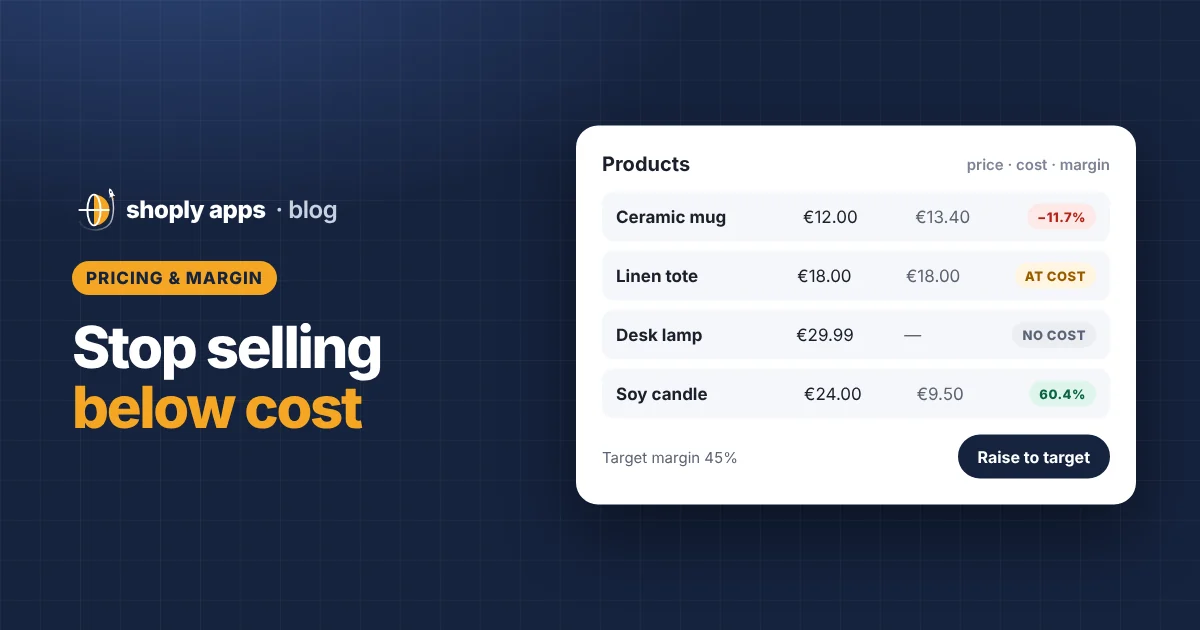
Our app Shoply: Item Scan & Analytics, free on the Shopify App Store, does this for you: it flags products sold below cost, at cost, at $0, under your margin target or missing a cost, ranks them by what they cost you each month, and lets you raise prices to a target margin in bulk with a preview before anything changes.
How do you stop below-cost products coming back?
Make cost part of every product you create, and check margins on a schedule. Below-cost prices creep back through new imports, supplier price rises and promotions that never end. A short routine:
- When adding a product: enter the cost per item for every variant before you publish.
- When a supplier changes prices: update cost per item the same day and recheck the margin.
- Before a sale: work out the margin at the discounted price, including shipping you pay for.
- After a sale: reset prices and compare-at prices so the discount does not linger.
- Once a month: export products, recalculate margins and fix anything below cost, at cost, at $0 or missing a cost.
For a broader monthly routine that also covers stock and product content, see our Shopify catalog health checklist.
FAQ
Where do I enter cost per item in Shopify?
In your Shopify admin, open the product and find the pricing section of each variant. Enter what you paid for one unit as the cost per item; customers never see it.
Is a 50% markup the same as a 50% margin?
No. A 50% markup on a $10 cost gives a $15 price, which is a 33.3% margin. To get a 50% margin you need a $20 price, because margin is profit divided by price, not by cost.
What price do I need for a 40% margin?
Divide the cost by 0.6, which is 1 minus 0.40. A product that costs $15 needs a price of $25 for a 40% margin, before discounts, shipping and payment fees.
Find every product you sell at a loss
Shoply: Item Scan & Analytics, free on the Shopify App Store, scans your whole catalog for products sold below cost, at cost, at $0 or missing a cost, and helps you raise prices to your target margin in bulk with a preview and undo.
Install free on Shopify