Too many Shopify apps? A monthly app audit to cut costs without losing sales
Key takeaways
- Shopify app costs creep up: a few €10–€50 subscriptions, usage fees and free trials that turned into paid plans can add up to hundreds a month.
- Once a month, list every app with what it costs, what job it does and how you know it's working.
- For sales apps (bundles, upsells, free gifts, discounts), measure the extra profit against the cost; for everything else, ask whether you'd notice if it was gone.
- Look for apps that do the same job or meet on the same orders, and for discounts that stack.
- Before uninstalling, check what the app leaves behind (theme code, discounts, data) and pause it for a few weeks if you're not sure.
Apps are one of the best things about Shopify: almost anything your store needs is a few clicks away. They are also one of the easiest ways to lose money without noticing. Each app is cheap on its own, but together they can cost more than your theme, your domain and your Shopify plan combined. This monthly audit takes about an hour and helps you keep the apps that earn their keep and cut the ones that don't.
Why Shopify app costs creep up
- Free trials roll into paid plans. You install an app to test it, forget about it, and the charge starts.
- Usage-based fees grow with your sales. Apps that take a percentage or charge per order cost more every month you grow.
- Plans get upgraded. An app moves you to a higher tier when you pass an order or product limit.
- Old apps stay installed. An app for a campaign that ended months ago keeps billing.
- Apps overlap. Two apps end up doing the same job, such as two review apps or two upsell apps.
Shopify bills app charges together with your plan, so they are easy to miss. In your Shopify admin, go to Settings → Billing to see your bills and the app charges on them, and to Settings → Apps for the list of installed apps.
A monthly Shopify app audit in five steps
Step 1: list every app and what it costs
Make a simple table with one row per app: its name, its monthly price, any usage fee, and the date you installed it. Add up the total. Many store owners are surprised by this number alone.
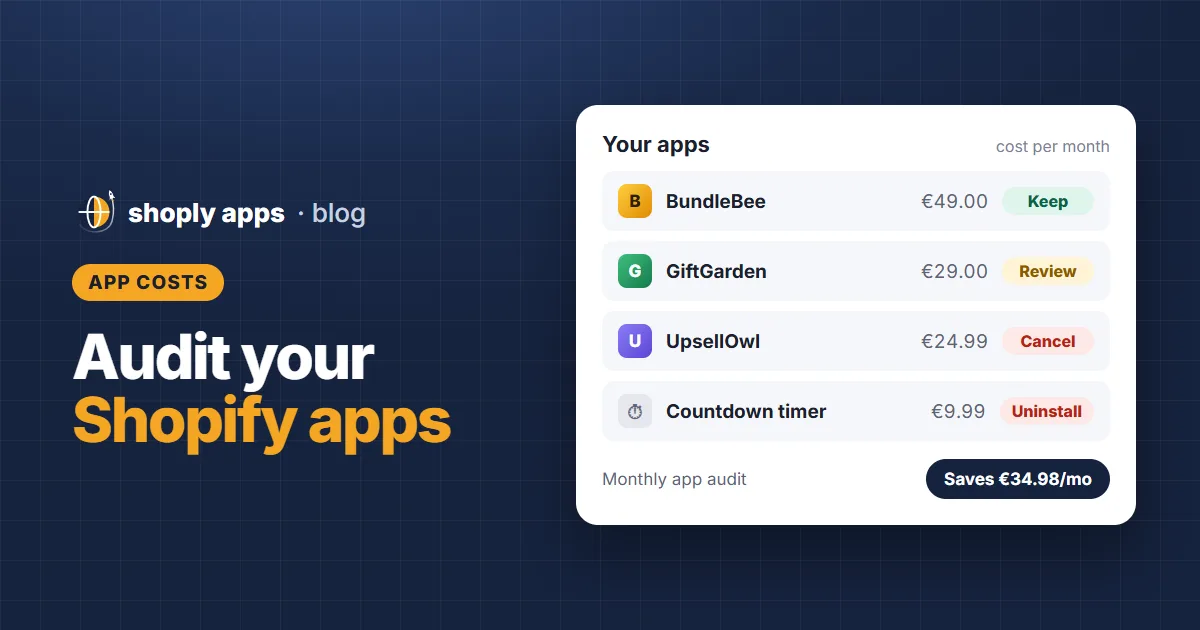
| App | Job | Cost per month | How you know it works | Decision |
|---|---|---|---|---|
| BundleBee | Bundles | €49.00 | +€296.60 net gain last 30 days | Keep |
| GiftGarden | Free gift over €50 | €29.00 + gifts | +€56.81 net gain, few orders | Review the offer |
| UpsellOwl | Cart upsell | €24.99 | Its orders are smaller than regular ones | Cancel |
| Review app | Product reviews | €15.00 | Reviews show on product pages | Keep |
| Countdown timer | Old campaign | €9.99 | Campaign ended in spring | Uninstall |
Made-up store for illustration.
Step 2: write down each app's job
For every app, finish the sentence "This app is here to…". If you can't, or the answer is "I'm not sure", it's a candidate to remove.
Step 3: check if sales apps pay for themselves
Bundle, upsell, cross-sell, free-gift and discount apps can be measured in money. Compare the average order of orders that used each app with your regular orders, turn the difference into extra profit with your margin, and subtract what the app costs, including discounts and free gifts it gives away. Our guide to calculating the ROI of your Shopify apps shows the exact formula, and are Shopify upsell and bundle apps worth it? explains how to read the result.
Step 4: ask the "would I notice?" question for the rest
Apps like reviews, SEO tools, shipping or inventory tools don't show up neatly in order values. For each one, ask: if this app disappeared tomorrow, would I or my customers notice within a month? Reviews on product pages: yes. A pop-up nobody clicks: probably not.
Step 5: decide: keep, review or cancel
- Keep apps that clearly earn their cost or do a job you'd miss.
- Review apps that almost pay: change the offer, downgrade the plan, or give them more time if they have few orders.
- Cancel apps that cost more than they bring in, apps with no clear job, and apps that duplicate another one.
Watch for apps that do the same job
Overlap is one of the most common sources of waste. Two upsell apps, a bundle app and a volume-discount app, or a free-gift app plus a discount code on the same order all compete for the same shoppers. Each one claims the order in its own dashboard, and discounts can pile up on a single order.
Check how often your sales apps meet on the same orders. If two apps share many orders, keep the one that pays better. And in Discounts, check each discount's Combinations setting so discounts only stack when you want them to.
How to remove an app safely
- Check what it added. Some apps add blocks or code to your theme, create discounts or add product data. Note them before you uninstall.
- Export anything you want to keep, such as reviews, reports or settings.
- Uninstall from Settings → Apps. Uninstalling stops the app's charges from that point; check your next bill to be sure.
- Clean up leftover app blocks in your theme editor and any discounts the app created.
- Watch your numbers for two to four weeks: average order value, conversion rate and sales. If nothing drops, you made the right call.
If you're unsure about a sales app, pausing it (or switching its offer off) for a few weeks is a cheap experiment: if your average order doesn't fall, the app wasn't adding much.
Make the audit automatic
The cost list is quick to keep up by hand. The hard part is measuring sales apps every month. Shoply: Apps ROI Tracker does that part for you: it finds every app that makes discounts or marks orders in your store, shows each app's extra profit, cost and ROI over 7, 30 and 60 days, flags apps that overlap and discounts that stack, and gives each app a keep, review or cancel check-up with what cancelling would save. It can also email you a daily, weekly or monthly report. It only reads your data and never changes your store.
FAQ
How many apps should a Shopify store have?
There's no right number. What matters is that every app has a clear job and earns more than it costs. A small store may need five apps; a larger one may need twenty.
Where can I see what I pay for Shopify apps?
In your Shopify admin, go to Settings → Billing. App charges appear on your bills alongside your Shopify plan. Settings → Apps lists every app installed in your store.
Does uninstalling an app stop its charges?
Uninstalling an app stops its subscription from then on. Check your next bill to confirm, and remove any theme code or discounts the app left behind.
Audit your sales apps in one place
Shoply: Apps ROI Tracker shows every sales app's extra profit, cost and ROI, where apps overlap and discounts stack, and which apps to keep, review or cancel.
See Apps ROI Tracker