Essential Shopify apps for a new store: what you actually need
Key takeaways
- The essential Shopify apps for a new store are few: Shopify already covers themes, discounts, abandoned checkout emails, basic analytics, shipping rates and sales channels, so check what your plan includes before installing anything.
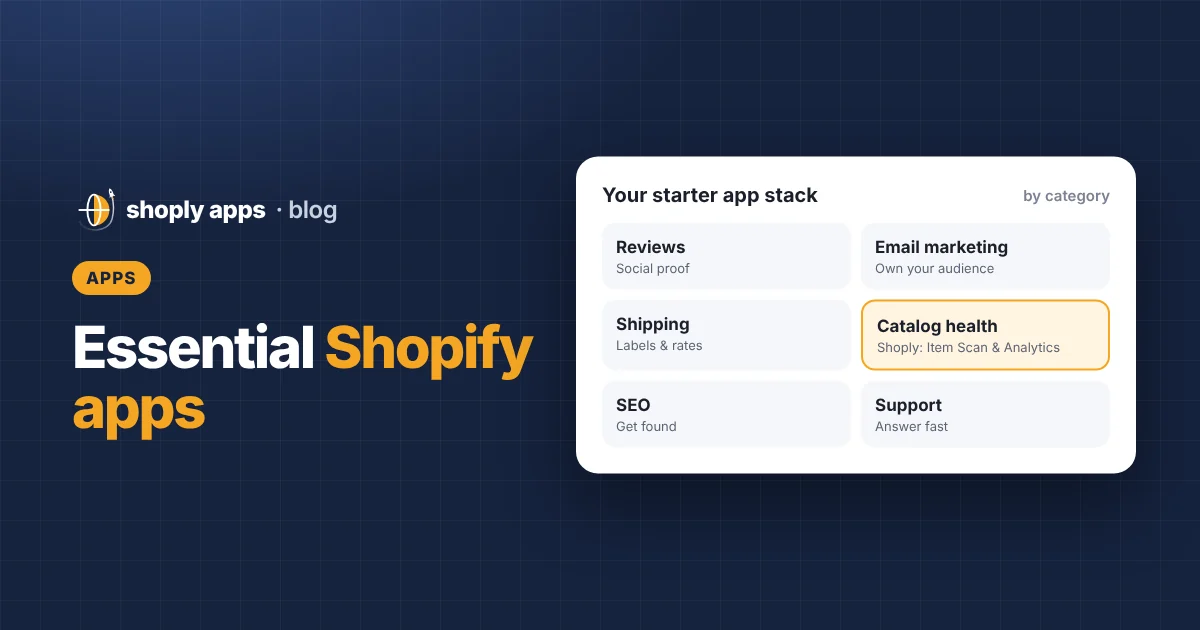
- Most new stores only need apps in a handful of categories: product reviews, email marketing, shipping labels, catalog health, and supplier apps if you dropship.
- Before installing any app, check its recent reviews, the permissions it asks for, where your data goes, whether it adds scripts to your storefront, and what it leaves behind when you uninstall.
- A small app stack costs less, loads faster and is easier to fix; add an app only when it solves a problem you actually have, and audit your apps every quarter.
The essential Shopify apps for a new store are the ones that fill a real gap in what Shopify already does, and for most new stores that is a short list. Installing a dozen tools "just in case" adds monthly costs, permissions and extra storefront code. This guide gives you an app strategy by category, not a list of names, so you can decide what you need and how to judge any app.
What does Shopify already do without any apps?
Shopify includes far more than many beginners realise, so start by checking what your plan already covers. Features vary by plan and change over time, so confirm the details on Shopify's current pricing and help pages, but these are generally built in:
- Themes. Free themes you can edit without code.
- Discounts. Discount codes and automatic discounts.
- Abandoned checkout emails. Automatic reminders to shoppers who did not finish checkout. See our guide to abandoned cart recovery to make the most of it.
- Basic analytics. Sales, sessions, conversion rate and top products in your admin's analytics and reports.
- Shopify Email. Shopify's own email tool for newsletters and simple automations, with a free monthly allowance on many plans.
- Shipping rates. Shipping zones, flat or weight-based rates, free shipping rules and, in some countries, discounted labels you can buy from the admin.
- Sales channels. Selling on social media and marketplaces beyond your online store.
If a built-in feature does most of what you want, use it first and add an app when you hit its limits.
What are the essential Shopify apps for a new store?
The best Shopify apps for new stores are not specific names but categories. The must have ones for most stores fall into a few: product reviews, email marketing, shipping, and catalog health. SEO, support, dropshipping and social apps matter depending on how you sell. For each category below you will find what it does, when you need it and what to look for.
Product reviews
What it does: collects reviews from customers after they buy and shows them on product pages. Reviews help shoppers trust a store they have never heard of.
When you need it: early, ideally from your first orders, because reviews take time to build up.
What to look for: automatic review request emails, photo reviews, moderation, and little extra code on product pages.
Email marketing
What it does: builds your email list and sends newsletters and automated emails such as a welcome series.
When you need it: from launch, even if Shopify Email is enough at first. Your list is an audience you own, unlike social followers.
What to look for: signup forms, simple automations, segmentation by what customers bought, and pricing that scales sensibly with list size. See our Shopify email marketing guide.
Shipping, fulfilment and label printing
What it does: prints labels, compares carriers, sends tracking updates and handles packing slips or returns.
When you need it: when you ship your own stock and the built-in options no longer fit, for example you need a carrier Shopify does not offer in your country, or packing orders one by one takes too long.
What to look for: support for your carriers and country, batch label printing, and clear per-label or per-order pricing. Get your shipping settings right before adding anything.
Catalog health and product data quality
What it does: checks every product for problems that quietly cost money: wrong prices, missing costs, stock issues and thin content, which are easy to miss one product at a time.
When you need it: once you have more products than you can review by hand each month, or as soon as you import products in bulk from a CSV or a supplier.
What to look for: checks that cover pricing, stock and content, a way to see which problems matter most, bulk fixes you can undo, and minimal data sharing.
To be transparent: this is the category we build for. Shoply: Item Scan & Analytics is our app, made by Shoply Apps, the publisher of this blog. It is free to install from the Shopify App Store. It runs 27 checks across three groups:
- Pricing and margin: products sold below cost, at cost or at $0, below your margin target, or missing a cost per item.
- Stock: oversold, out of stock, low stock, not selling in 60 days, or inventory not tracked.
- Descriptions and content: missing or short descriptions, missing images or alt text, SEO issues, and missing brand, barcode (GTIN) or product category.
It ranks problems by the money at stake each month, so you fix the costly ones first, and lets you fix them one at a time or in bulk, with change history and undo. It uses only Shopify's own APIs, sends your data to no outside services, adds no trackers, and stores data in the EU. You can read why we built it, or run the same checks by hand with our catalog health checklist.
SEO helpers
What it does: helps with meta titles and descriptions, image alt text, redirects and structured data.
When you need it: once your basics are in place. Shopify already lets you edit page titles, meta descriptions, URLs and alt text, so start with our Shopify SEO guide for beginners.
What to look for: tools that report and suggest rather than make big automatic changes, and nothing that promises guaranteed rankings.
Customer support and chat
What it does: lets shoppers ask questions through live chat, a help centre or a shared inbox.
When you need it: when answering emails starts eating your day, or shoppers often ask the same pre-sale questions. Check Shopify's own free chat option first.
What to look for: order lookup inside the tool and a light storefront widget.
Dropshipping and supplier apps
What it does: imports products from suppliers, syncs stock and prices, and passes orders on for fulfilment.
When you need it: only if you dropship, and then from day one. See how to start dropshipping on Shopify.
What to look for: reliable stock syncing, shipping times you can show customers, and imports that bring in cost per item, so your margins are visible.
Social and sales channels
What it does: connects your catalog to social platforms and marketplaces so people can discover and buy products there.
When you need it: when you are ready to show up consistently on that platform. Many channels are added from Shopify's sales channels section; check each platform's current requirements and availability in your country.
What to look for: product sync that keeps prices and stock current, and clean product data, because channels often reject listings with missing fields. Our social media marketing guide helps you pick a platform.
How do you choose a Shopify app you can trust?
Judge every app on the same few points before you install it: reviews, permissions, data, speed, pricing, support and Shopify's own quality signals. Use this checklist:
| Check | What to look for | Red flag |
|---|---|---|
| Reviews | Recent reviews from stores like yours, and replies from the developer | Old reviews only, or complaints left unanswered |
| Permissions | Access only to what the app needs to do its job | A simple tool asking to read customers and orders without a clear reason |
| Where data goes | A privacy policy naming any outside services the app uses | Vague data use, or trackers added to your store |
| Store speed | Admin-only, or storefront code added through theme app extensions you can switch off | Several scripts loaded on every page |
| Pricing and uninstall | Clear plans and limits, and a clean uninstall | Usage charges you cannot predict, or code left in your theme |
| Support and docs | Help articles, a support contact and stated response times | No documentation or way to reach the developer |
| Quality badges | Shopify highlights some apps that meet its quality standards, such as with a "Built for Shopify" badge | Treating a badge as a reason to skip the other checks |
Storefront scripts can slow pages, especially on mobile, so run a speed test before and after installing. Slow pages are one issue covered in our guide to increasing your conversion rate.
Why should you keep your app stack small?
Every app adds cost, code and one more thing that can break, so a lean stack is cheaper, faster and easier to manage. Here is a worked example of two new stores, each taking 40 orders a month. All figures are made-up examples, not real app prices.
| Example | Lean stack | Bloated stack |
|---|---|---|
| Apps installed | 4 | 12 |
| Overlapping apps | 0 | 3 (two popups, two review tools, a second analytics app) |
| Example monthly app cost | $40 | $190 |
| Scripts added to the storefront | 2 | 9 |
| Example app cost per order (40 orders) | $40 ÷ 40 = $1.00 | $190 ÷ 40 = $4.75 |
If the store's average profit per order were $15 (again, an example), the bloated stack would eat almost a third of it, compared with a fifteenth for the lean stack. Before installing, ask: does this solve a problem I have today, and does something I already have do it?
What is a good starter app stack at each stage?
Add apps as your store grows rather than all at once. A sensible order looks like this:
| Stage | Use built-in features for | Consider adding |
|---|---|---|
| First month | Theme, discounts, abandoned checkout emails, Shopify Email, shipping rates, analytics | Product reviews; a supplier app if you dropship |
| First 100 orders | Basic SEO fields, Shopify's chat option | An email marketing tool if you outgrow Shopify Email; a shipping label tool if you ship your own stock |
| Growing | Reports for spotting trends | Catalog health checks, a support inbox, extra sales channels you can keep up with |
How often should you review your Shopify apps?
Review your apps every quarter. For each app, check:
- Did I use it this quarter? If not, uninstall it.
- Does it overlap with another app or a new Shopify feature? Keep one.
- Has its permission list or pricing changed? Check any update notices.
- Did uninstalled apps leave code behind? Look in your theme for leftover snippets, or ask the developer how to remove them.
FAQ
How many apps does a new Shopify store need?
There is no fixed number. Many new stores launch with only a few apps, because Shopify already covers themes, discounts, abandoned checkout emails, analytics and shipping rates. Add an app only when it solves a specific problem.
Are free Shopify apps safe to use?
Free apps can be fine, but vet them like paid ones: check recent reviews, permissions, where your data goes and whether they add storefront scripts. Also check whether the free plan has limits.
Do Shopify apps slow down my store?
Some do. Apps that add scripts to your storefront can increase page load time, while apps that only work inside your admin generally do not affect storefront speed. Run a speed test before and after installing an app.
What happens when I uninstall a Shopify app?
The app loses access to your store, and apps built with theme app extensions are usually removed cleanly. Older apps may leave code in your theme files, so check your theme after uninstalling and confirm with the developer that billing has stopped.
Keep your product catalog healthy from day one
Shoply: Item Scan & Analytics, our app, free on the Shopify App Store, scans every product for 27 pricing, stock and content problems, ranks them by money at stake and lets you fix them in bulk with undo.
Install free on Shopify