


How to bulk edit prices on Shopify: bulk editor, CSV and apps
Key takeaways
- Shopify gives you two free ways to change prices in bulk: the bulk editor in the admin, and a product CSV export and import.
- The bulk editor is best for tens of products. A CSV is best for hundreds, or for a percentage change worked out with a spreadsheet formula.
- Always export a full product CSV before you start. If something goes wrong, re-importing it is your way back.
- After a % change, round prices on purpose and check that every compare-at price is still higher than the price.
- Fill in cost per item, then check margins after the change, so no product ends up below cost.
Your supplier raised costs by 8%, or you want to run a sale on a whole collection. Changing prices one product at a time would take all afternoon. This guide shows how to bulk edit prices on Shopify with the free tools in your admin, how to make a percentage change with clean rounding, how to handle compare-at prices and cost per item, and how to avoid the mistakes that are hard to undo.
What are the ways to change prices in bulk on Shopify?
| Method | Best for | Cost |
|---|---|---|
| Bulk editor in the admin | A few dozen products, typing new prices | Free |
| CSV export and import | Hundreds of products, % changes with a formula | Free |
| Bulk price app | Rules, previews, scheduled sales, undo | Free or paid |
Whichever you pick, do one thing first.
Before you start: export a backup
In your admin, go to Products, click Export, choose All products and export as CSV. Save the file somewhere safe with the date in its name, such as products-backup-2026-11-11.csv. If a bulk change goes wrong, you can import this file to put your old prices back. It takes a minute and can save you a very bad day.
How do you use the Shopify bulk editor to change prices?
The bulk editor is a spreadsheet-style table inside your admin. Shopify describes it in its bulk editing help page. To use it for prices:
- Go to Products. Filter the list if you only want some products, for example one collection or one vendor.
- Tick the products you want to change, or tick the box at the top to select them all.
- Click Bulk edit.
- Add the columns you need: price, compare-at price and cost per item. Each variant gets its own row.
- Type the new prices. You can copy a value and paste it into several cells.
- Click Save. If Shopify shows errors, fix those cells and save again.
The bulk editor is quick for typing new prices. It is less handy for "raise everything by 8%", because you still work out each new price yourself. For that, a CSV is easier.
How do you bulk edit prices with a CSV file?
A product CSV has one row per variant. The columns that matter for pricing are:
- Handle: the product's ID in the file. Never change it, or Shopify will create a new product.
- Variant Price: the price shoppers pay.
- Variant Compare At Price: the old price, shown crossed out during a sale.
- Cost per item: what the product costs you. Shoppers don't see it.
The steps: export the products you want to change, open the file in a spreadsheet, change the price columns, save it as CSV, then go to Products → Import, choose the file and tick the option to overwrite products with matching handles. Shopify shows a preview before the import starts. Read it.
Type prices as plain numbers, like 21.99, with no currency sign. And keep the file tidy: some rows in an export, such as extra image rows, have no price at all. Leave those empty.
How do you raise prices by a percentage and keep them rounded?
Multiplying by 1.08 gives prices like €21.59 and €4.86. You probably want a consistent ending, such as .99. In a spreadsheet, put this in a new column next to the price (here the price is in column D):
=IF(D2="","",ROUND(D2*1.08,0)-0.01)
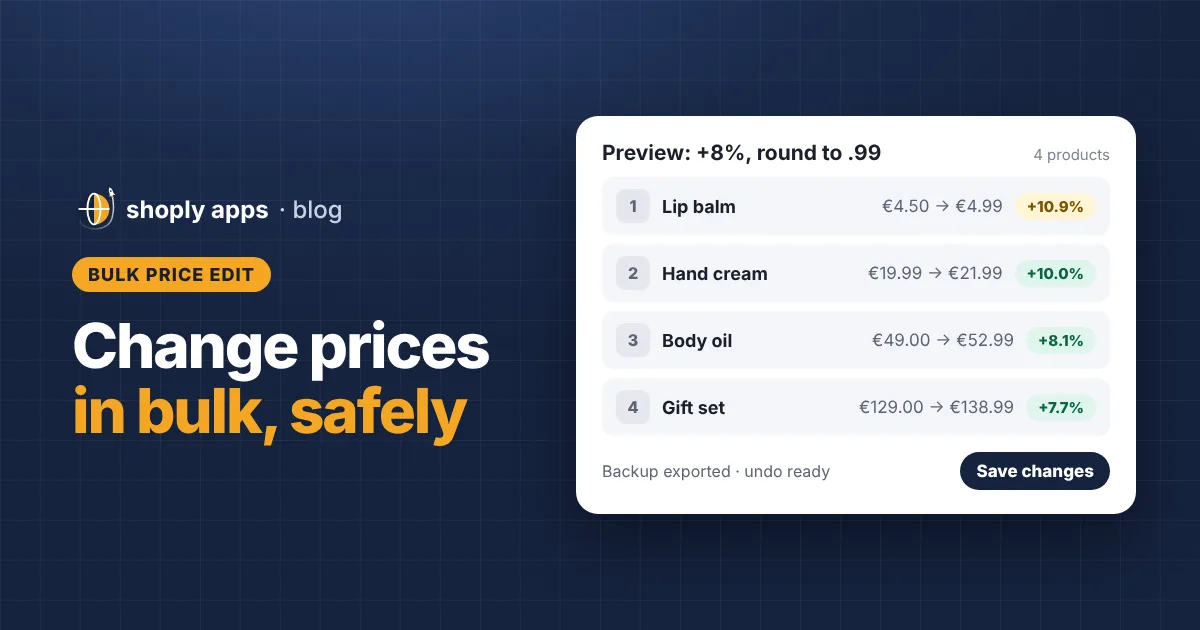
This raises the price by 8%, rounds to the nearest whole euro and takes off one cent. The IF part skips rows with no price. Then copy the results and paste them back into the Variant Price column as values. Here is what it does:
| Old price | × 1.08 | New price | Real change |
|---|---|---|---|
| €4.50 | €4.86 | €4.99 | +10.9% |
| €19.99 | €21.59 | €21.99 | +10.0% |
| €49.00 | €52.92 | €52.99 | +8.1% |
| €129.00 | €139.32 | €138.99 | +7.7% |
Notice that rounding changes the real increase a lot on cheap products. A €4.50 item goes up almost 11%, not 8%. That is usually fine, but look at your cheapest products by hand. If your spreadsheet uses commas for decimals, it may also need semicolons in the formula instead of commas.
Prices in other currencies need their own check. If you set fixed prices per market, see our guide to Shopify multi-currency pricing.
How do you set compare-at prices for a sale?
To show a sale, the old price goes into the compare-at price and the lower sale price goes into the price. In a CSV, that means copying Variant Price into Variant Compare At Price first, then lowering Variant Price. Shopify only shows a sale when the compare-at price is higher than the price.
To end the sale, move the compare-at price back into the price and clear the compare-at field. Leave it empty. Shopify's help pages point out that a compare-at price of 0 is not the same as an empty field.
Watch out after a general price rise. A product that had a compare-at price of €24.99 and a new price of €25.99 now shows a "sale" price higher than the old price, which looks wrong to shoppers. If you sell in the EU, rules on price reductions also apply to the "was" price you show, so keep compare-at prices honest.
Why fill in cost per item before changing prices?
Without a cost per item, Shopify can't show your margin, and you can't tell whether a new price still makes money. A sale of 30% off on a product with a 35% margin leaves almost nothing once shipping and fees are paid. Fill in the Cost per item column in the bulk editor or the CSV, then check the margins of the new prices. Our free Shopify profit margin calculator shows the margin after fees for any price, and our guide on products selling below cost shows how to find the ones that slipped under.
How do you avoid bulk price mistakes?
Most bulk price disasters come from a handful of small slips. Test the whole process on two or three products first, and look at them in your store before you change the rest. Don't run two imports at the same time. Check that the number of products in the file matches what you expected. And after the import, export the changed products again and sort the price column in your spreadsheet: a €0.00 or €9,999 price stands out straight away.
One more: a price in the wrong column. If the sale price ends up in compare-at and the old price in price, your "sale" raises prices. Check one product page before you announce anything.
When is a bulk price app worth it?
If you change prices once or twice a year, the free tools are enough. If you change them often, run regular sales or have thousands of variants, an app saves time. Look for a preview of every change before it is saved, a log of changes with undo, rules such as "raise by 8% and round to .99", and support for variants and compare-at prices.
Our own app, Shoply: Item Scan & Analytics, is built around margins. It finds products sold below cost or under your target margin, compare-at prices that aren't higher than the price, and products with no cost per item. It then fixes prices in bulk to your target margin with a preview, supports Excel import and export including cost per item, and logs every change with undo. It is free on the Shopify App Store.
Bulk price change checklist
- Full product CSV exported and saved with the date.
- Cost per item filled in for every variant.
- New prices worked out and rounded to your usual ending.
- Cheapest products checked by hand after rounding.
- Compare-at prices higher than the price, or empty (not 0).
- Margins checked: no product below cost or under your target.
- Tested on two or three products first.
- Prices sorted in a fresh export after saving, to spot odd values.
- Market prices checked if you set prices per country.
FAQ
Can I change all Shopify prices by a percentage at once?
Yes, with a little spreadsheet work. The most reliable free way is to export your products to CSV, work out the new prices with a formula, and import the file again with the option to overwrite products with matching handles. Bulk price apps can also do it, usually with a preview first.
Which CSV columns hold prices in Shopify?
In Shopify's product CSV, the selling price is in Variant Price, the old price for a sale is in Variant Compare At Price, and what the product costs you is in Cost per item. Each variant has its own row.
How do I end a sale in bulk?
Put the compare-at price back into the price, then clear the compare-at price. Leave the field empty rather than typing 0, because Shopify treats 0 and empty differently.
Can I undo a bulk price change in Shopify?
Don't count on an undo button. Export a full product CSV before every bulk change: re-importing that backup puts the old prices back. Some apps keep a log of every change with undo, which is handy if you change prices often.
Fix prices in bulk, with a preview and undo
Shoply: Item Scan & Analytics finds products sold below cost or under your target margin, compare-at prices that aren't higher than the price and missing costs, then fixes prices in bulk to your target margin with a preview. Every change is logged with undo. Free on the Shopify App Store.
See Item Scan & Analytics