
How to ask Shopify Sidekick about your catalog problems
Key takeaways
- Sidekick is Shopify's AI assistant in the Shopify admin. Apps can give it extra tools, so it can answer questions using the app's data.
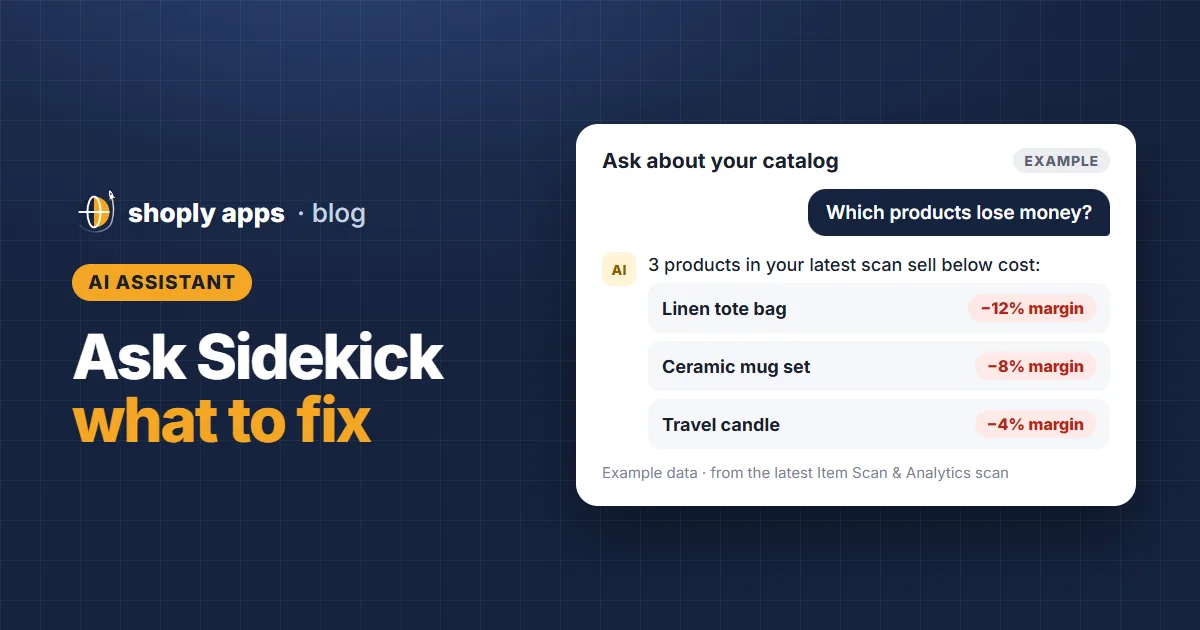
- With the free Shoply: Item Scan & Analytics app installed and a scan run, you can ask Sidekick about your catalog in plain words, such as "Which products lose money?" or "What should I fix first?".
- Sidekick reads the latest scan: the health score, problems by priority and category, the products with problems and how the score changed over recent scans.
- It is read-only. Sidekick doesn't change prices or products through the app; you make changes in the app (bulk fixes with a preview and undo) or in the Shopify admin.
- Answers are only as fresh as your last scan, and Sidekick's availability and behaviour are up to Shopify and can vary by store.
Most catalog problems are easy to fix once you know where they are. The hard part is finding them: the product sold below cost after a supplier raised prices, the best seller that is about to run out, the new import with no images. If Sidekick is available in your Shopify admin, you can ask it about these problems in plain words, and it answers from your latest scan in Shoply: Item Scan & Analytics. This guide shows how it works, which questions to ask and what it can't do.
What is Shopify Sidekick?
Sidekick is the AI assistant that Shopify builds into the Shopify admin. You type a question or a request in everyday language and it answers using what it can see in your store. Shopify also lets apps add their own tools to Sidekick. When an app does, Sidekick can use that app's data to answer questions it couldn't answer on its own. These are sometimes called Sidekick apps or Sidekick app extensions.
Sidekick is made and run by Shopify. Whether it appears in your store, which languages it understands and exactly how it answers are up to Shopify, and they can differ from store to store and change over time.
What can Sidekick tell you about your catalog?
Shoply: Item Scan & Analytics checks the products in your store for problems with pricing, stock and content, and ranks them so you know what to fix first. Once you've run a scan, the app gives Sidekick tools to read the results of your latest scan. With them, Sidekick can tell you:
- An overview of the scan: your catalog health score out of 100, when the scan ran, how many products have problems, how many problems are high, medium or low priority, and how they split across pricing, stock and content.
- What to fix first: the top problems, with how many products each one affects and the monthly sales at stake when the app knows them.
- Which products have problems: most urgent first, up to 15 at a time. Sidekick can narrow the list by product name, priority, category or a type of problem, such as products sold below cost (a negative margin), products missing images or products low on stock. Each product comes with a link that opens it in the app.
- The most common problems: each type of problem found, with its priority and how many products have it.
- Whether things are getting better: your health score over recent scans, and whether it is improving, getting worse or unchanged.
How to ask Sidekick about your catalog, step by step
Install the app, run a scan, then ask Sidekick your question in plain words. It takes a few minutes the first time.
- Install Shoply: Item Scan & Analytics. It's free from the Shopify App Store, with every feature included.
- Run a scan. Open the app and click Scan. Sidekick can only answer from scan results, so this step comes first.
- Ask your question. Open Sidekick in your Shopify admin and type a question about your catalog, or use the shortcut below.
- Check the details in the app. Open the product links in Sidekick's answer to see the full problem, the numbers behind it and the ways to fix it.
The "Ask Sidekick" button in the app
On the app's Catalog health page there is an Ask Sidekick button next to Scan. It opens Sidekick with the question "Using Item Scan & Analytics, which catalog problems should I fix first, and why?", so you can ask about your top problems without typing the question yourself. The button only appears on stores where Shopify makes Sidekick available. If you don't see it, Sidekick isn't available in your store, and everything else in the app works as usual.
Which questions can you ask Sidekick?
You don't need special commands. Ask the way you would ask a colleague. These questions work well with Item Scan & Analytics:
| Ask Sidekick | What it looks up in your latest scan |
|---|---|
| "How is my catalog doing?" | Health score, when the scan ran, and problems by priority and category |
| "What should I fix first?" | The top problems, products affected and monthly sales at stake when known |
| "Which products lose money?" | Products sold below cost (negative margin), most urgent first |
| "Which products are missing images?" | Products with the missing image problem |
| "What's wrong with the linen tote bag?" | The problems found on products whose name matches |
| "What are the most common problems?" | Each type of problem with its priority and how many products have it |
| "Is my catalog getting better?" | Your health score over recent scans and whether it is improving |
You can narrow a question the same way you'd narrow a list, for example "Only the high-priority ones" or "Just the stock problems". Sidekick can only answer from what the scan found, so it can't tell you about a product the scan didn't check.
What Sidekick can't do through the app
Sidekick can only read your latest scan results through the app; it can't change your store, and its answers are only as complete and current as that scan.
- It doesn't change anything. The app's Sidekick tools only read scan results. Sidekick doesn't change prices, stock or product details through Item Scan & Analytics.
- It's only as fresh as your last scan. If you changed prices this morning and last scanned a week ago, Sidekick still sees last week's results. Run a new scan when you want up-to-date answers. If you haven't scanned yet, Sidekick will tell you to run a scan in the app first.
- It may not see every product on very large catalogs. A scan of a very large catalog can cover only part of it, and Sidekick's answers then cover only the products that were scanned.
- It lists up to 15 products at a time. For longer lists, narrow the question (by priority, category or problem type) or open the full list in the app.
- AI answers can be wrong. Sidekick may summarise or phrase things imperfectly. Before you change a price or remove a product, check the details in the app.
How do you fix what Sidekick finds?
Sidekick is good for finding out what needs attention. Fixing happens in the app or in your Shopify admin:
- In Item Scan & Analytics: open a product from Sidekick's answer to see its problems in full. Many problems can be fixed in bulk, with a preview before anything changes and an undo afterwards.
- In the Shopify admin: edit the product yourself, for example to update the cost per item, raise a price or add images.
- Then scan again. A fresh scan updates your health score, so the next time you ask "Is my catalog getting better?" the answer includes it.
For the thinking behind which problems to fix first, see our monthly catalog health checklist and the guide to finding products you're selling below cost.
FAQ
What is Shopify Sidekick?
Sidekick is the AI assistant that Shopify builds into the Shopify admin. You ask it questions in everyday language, and apps can give it extra tools so it can answer with their data. Its availability, languages and behaviour are decided by Shopify and can vary by store.
Can Sidekick change my prices or products through Item Scan & Analytics?
No. The app's Sidekick tools are read-only: they read your latest scan results. You make changes in the app, with bulk fixes that you preview first and can undo, or directly in the Shopify admin.
Why does Sidekick tell me to run a scan?
Sidekick answers from your latest Item Scan & Analytics scan. If there is no scan yet, open the app and click Scan, then ask again. Run a new scan whenever you want answers that reflect recent changes.
Why don't I see the Ask Sidekick button in the app?
The button only appears on stores where Shopify makes Sidekick available. If it's missing, Sidekick isn't available in your store, and the rest of the app works the same.
Are Sidekick's answers always right?
Sidekick works from your scan results, but like any AI assistant it can summarise or word things imperfectly. Treat its answer as a starting point and check the details in the app before changing prices or products.
Sidekick is a Shopify feature. Shoply Apps is a Shopify Partner, but this guide and our app aren't endorsed by Shopify. What Sidekick can do, where it's available and how it answers are decided by Shopify and may change. Item Scan & Analytics gives Sidekick read-only access to your latest scan results.
Ask Sidekick what to fix first
Shoply: Item Scan & Analytics checks your products for pricing, stock and content problems, ranks them by what to fix first, and lets Sidekick answer questions about your latest scan. It's free, with every feature included.
Install free on Shopify